Finding your way around a project
Alongside the content-specific navigation covered on the other Write pages (following a link, jumping to a heading, finding references), Visual Studio CodeCursorZedJetBrains IDEs gives you a few general ways to orient yourself in a file and in your project that apply no matter what construct you are working with.
Open the outline
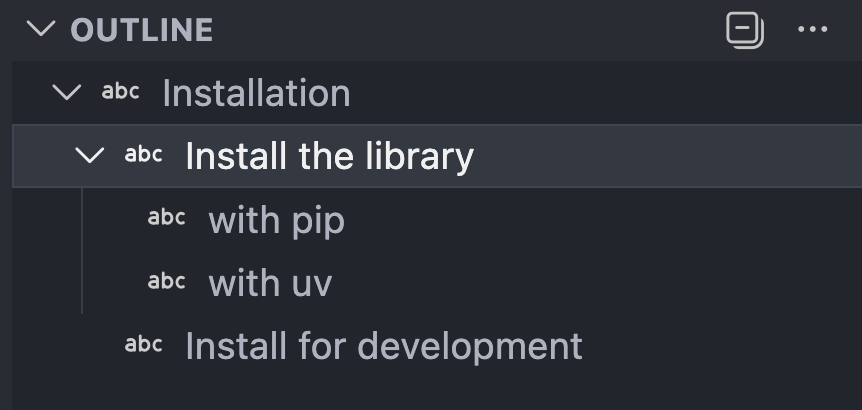
Visual Studio CodeCursorZedJetBrains IDEs has an Outline viewOutline viewoutline paneloutline view that shows the headings in the current Markdown file.
- Open the explorerOpen the explorerOpen the project panelCtrl+Shift+EmacOSCmd+Shift+EWindowsCtrl+Shift+ELinuxCtrl+Shift+E.
- Expand the Outline viewOutline viewoutline paneloutline view.
- Click a heading to jump to that section.
The Outline view shows the heading structure of the current Markdown file. You can fold and expand entries and click on them to scroll to a specific heading. Headings pulled in from an included snippet appear too, in the position where they're included.
Use breadcrumbs
Breadcrumbs show the path to the current file and the path within the file to the section the cursor is in. Not only can you see your current location, by clicking on the breadcrumbs you can navigate to parents and siblings of the breadcrumb elements displayed.
This is useful when you are working in a long document and want a quick sense of where you are without losing the rest of the page.
If Visual Studio CodeCursorZedJetBrains IDEs does not show breadcrumbs, you can turn them on with View → Appearance → Breadcrumbs.
Folding
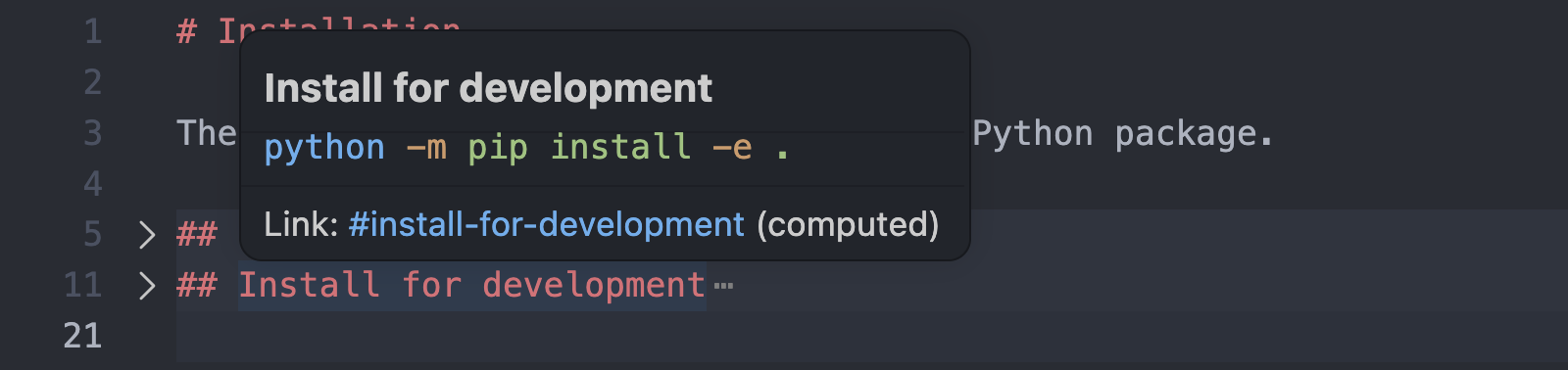
As Zensical Studio identifies headings, snippet directives, and other Markdown block elements, you can use the folding functionality in Visual Studio CodeCursorZedJetBrains IDEs to hide away content. To get a preview of what is inside a folded-away heading, for example, hover over it.
Spotting repeated occurrences
Place the cursor on a reference label, footnote, or abbreviation and Zensical Studio highlights every other occurrence of it in the current file, so you can see local repetition at a glance. This is automatic and file-local; use Find All ReferencesFind All ReferencesFind referencesFind UsagesShift+F12 when you need the same thing across the whole project.