Keep your content externally addressable
A heading gets a computed anchor automatically, from its own text, so it is already a link target the moment you write it. Content tabs can also be configured to have anchors, but everything else is not a link target by default.
Zensical Studio keeps links in your project valid as you edit your content and automatically created anchors change. However, it can only update links that are under its control. If you have external links that are important, such as those published in a release note, a blog post, or that are frequently bookmarked, these break silently instead.
Python Markdown's attr_list extension makes it possible to
manually assign IDs to many block and inline elements such as admonitions, plain
paragraphs, code block, or table cells. By assigning explicit IDs, you can
not only make content linkable that is not by default. You can also ensure that
the anchors do not change even if text does.
Example project
This workflow uses the project in zensical-example-project.zip but you can explore the same behavior in your own project.
Add a link target

Use Run the code actionRun the code actionToggle Code ActionsShow Context ActionsCtrl+.macOSCmd+.WindowsCtrl+.LinuxCtrl+. on a heading, paragraph, list item, definition term, table cell, fenced code block, or Markdown-enabled HTML element, including one nested inside a block quote or admonition, then choose Add link target. Zensical Studio generates a unique ID and inserts it using the correct syntax and position for you.
Exceptions
Whole implied containers, such as lists or tables are
exceptions in that attr_list cannot assign
attributes to them as a whole. The solution is to assign an ID to a first
list item or table cell instead.
The action creates the correct Python Markdown's attr_list syntax for each
element. Try some of these:
# Usage { #use }

Paragraph content.
{ #paragraph-id }

- List item
  { #item-id }

Term
: Definition text
{ #term-id }

| Role                  | Can do                            |
| --------------------- | --------------------------------- |
| Agent { #role-agent } | Reply to and assign conversations |

```python { #code-id }
print("Anchored code block")
```
You can write this directly instead of running the action but Zensical Studio makes it easier to get the syntax right. Either way, once a block has an ID, it behaves like any other workspace symbol: it completes in links, shows up in navigation, supports Find References, and renames along with its incoming links.
Check what depends on an anchor before you change it
A CodeLens above a heading or an explicit ID shows how many links reference it, so you can tell at a glance whether anything else would change if you were to edit it. Use Find All ReferencesFind All ReferencesFind referencesFind UsagesShift+F12 on any anchor, a heading or a block with an explicit ID, to see every link that depends on it, including links in other Markdown files.
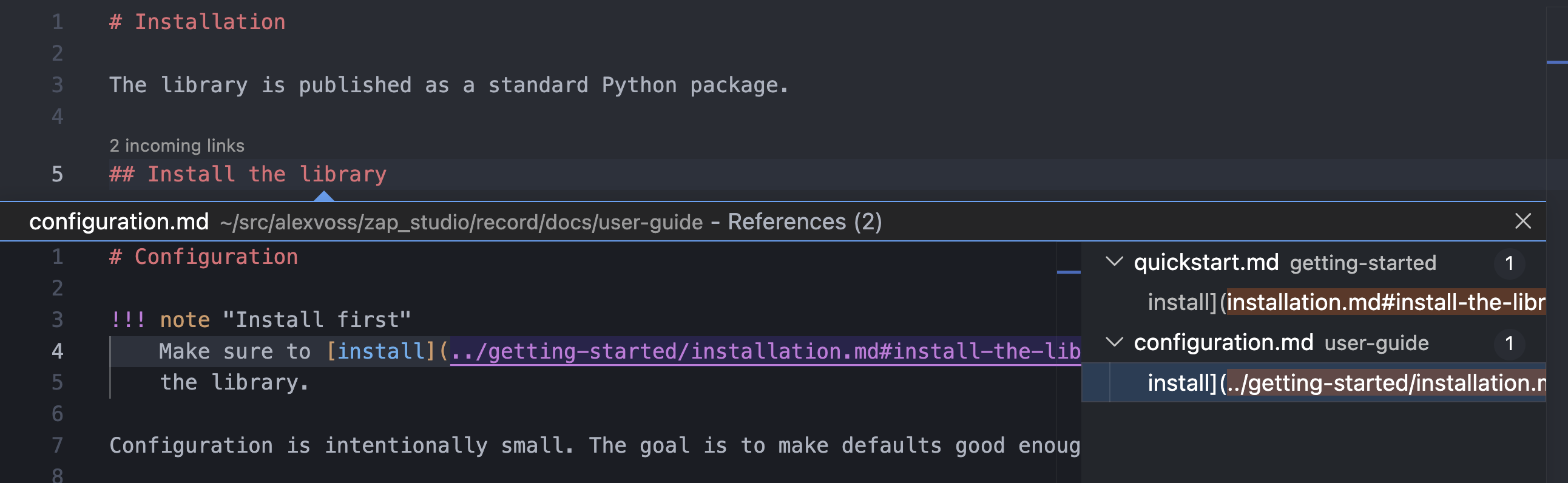
Check this before you reword a heading, restructure a table, or remove a paragraph that looks unused. It tells you whether the change is local or reaches content you cannot see from the file you have open.
Redirects are next
Zensical is also working on support for the mkdocs-redirects
plugin, tracked in
issue #23, so a
page's old address can keep resolving even after the page itself
moves, not just an anchor within it.
Where to go next
- Keep links valid while editing covers what happens to links when you rename or move something inside your project.
- Catch and repair problems covers recovering when a link breaks anyway, including after changes made outside Studio.