Working with links
Links are an important part of your information architecture but broken links are a scourge for authors and readers alike. Markdown linters provide checks but with Zensical Studio it becomes easier than ever to get rid of broken links by preventing them in the first place.
Zensical Studio supprts both inline and reference-style links:
[inline link](target)
[reference style link][label]

[label]: target
It helps prevent broken links by:
- providing link completions
- changing links when link targets are renamed
- changing linkss when files are renamed or moved
- supporting assigned IDs
- reporting broken links
The following sections show you how you can use this functionality in your editor.
Inline links
When you start typing a link target, Zensical Studio offers suggestions based on what you have typed so far. For example:
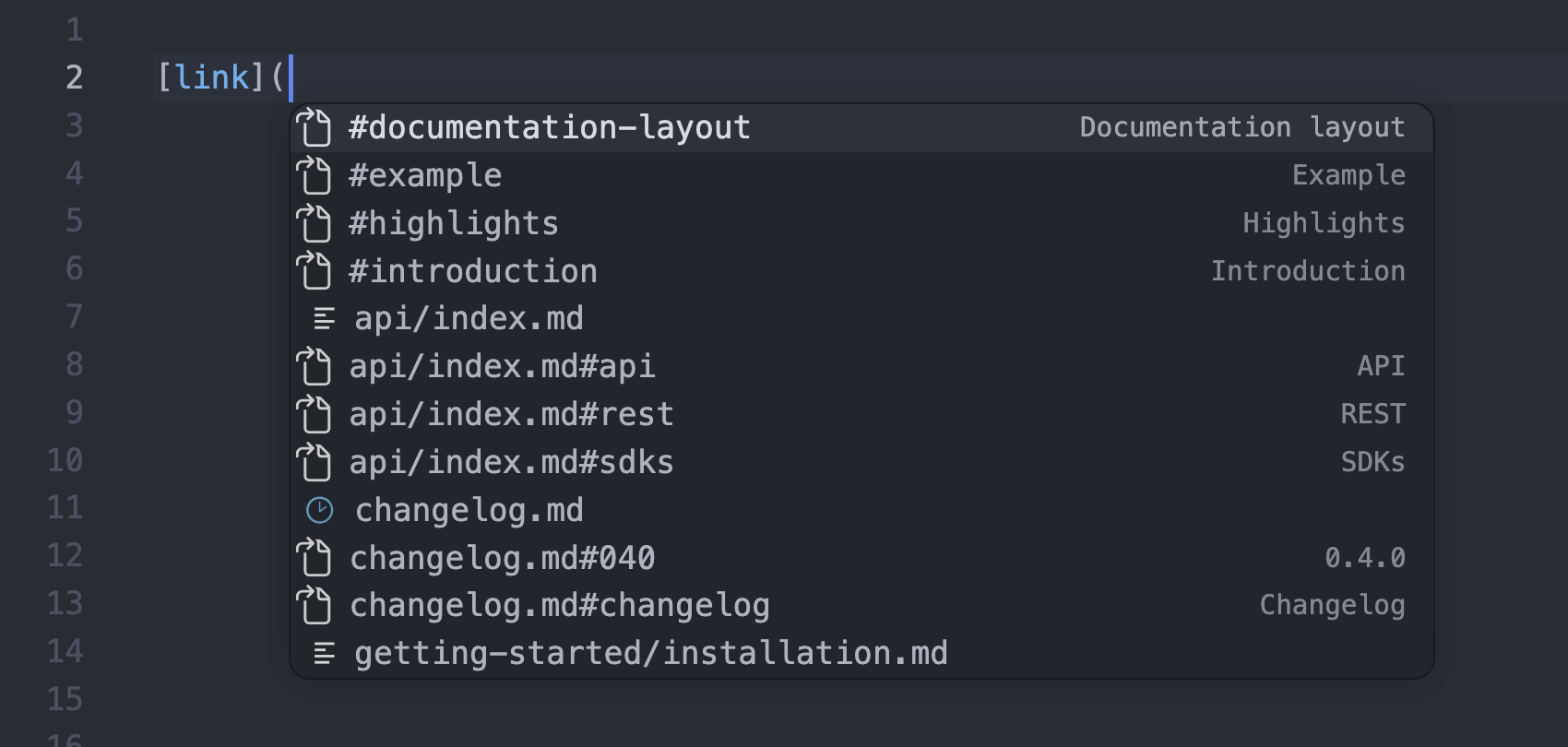
Type [text]( and to get a list of Markdown files and anchors within them.
If you continue by typing a relative path prefix such as ../, this will
narrow down the list of possible matches. You do not need to type the precise
path as matching is fuzzy. If you know the filename you are looking for but
don't know the path, Zensical Studio will help.
Reference style links
The same works for reference links, links where the definition of the link target is separate from the place where the link occurs in the text:
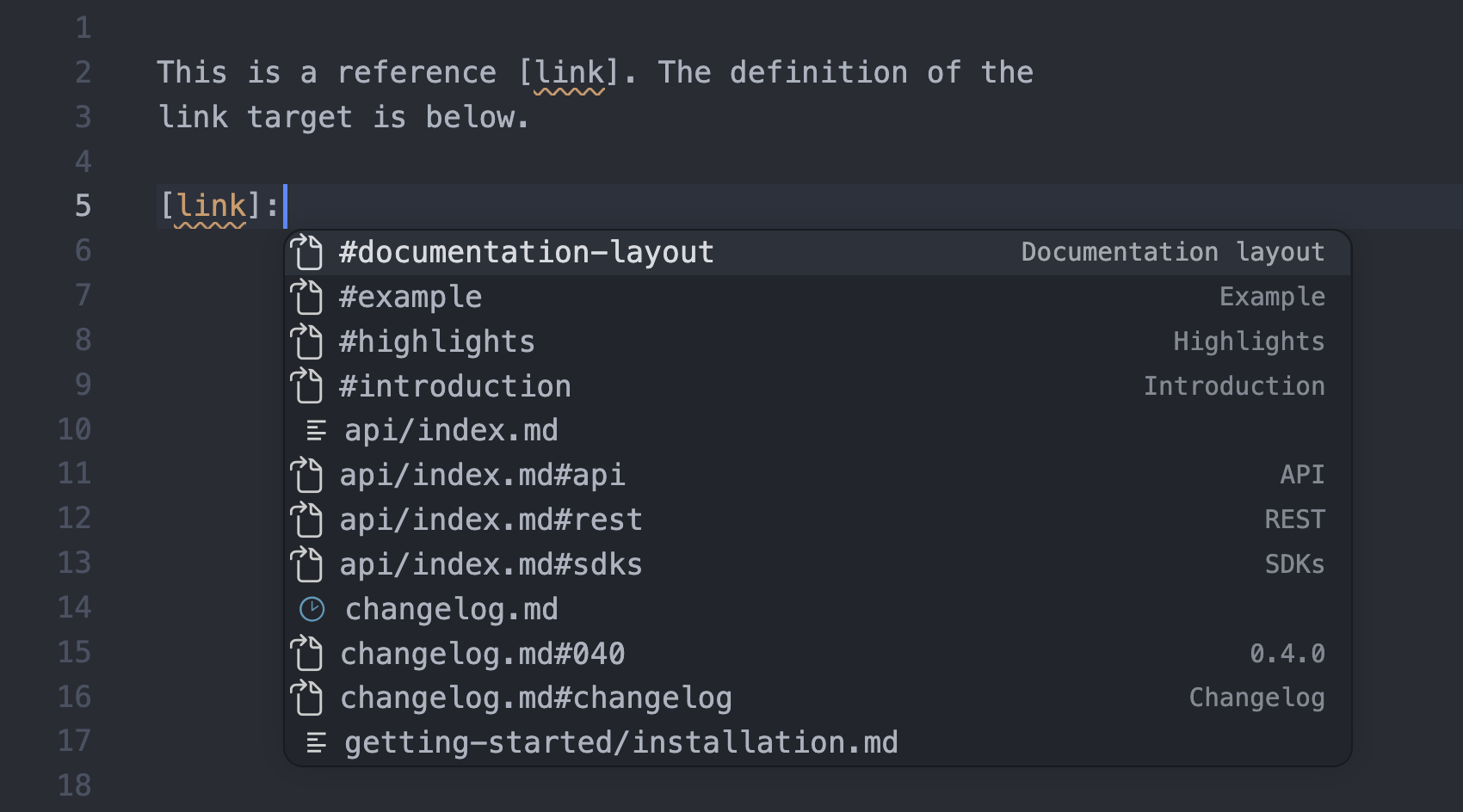
As soon as you select a link target, the underlining under both the link itself and the defintion of the target will disappear as the link will be valid.
Note how, in both cases, the completion included the headings in the target
file. If you type [link](api/index.md#, the list will reduce to just the
headings within this file. Type [link](# and the editor suggests headings
from the file you're currently editing.
When you type [text][, the editor suggests the reference labels already
defined in the current file, so you can reuse an existing definition
without retyping the target.
Custom IDs
The anchor for a heading is normally derived from the heading title. With the
attr_list Markdown extension, you can assign explicit IDs to headings, which
can then be used as the link targets.
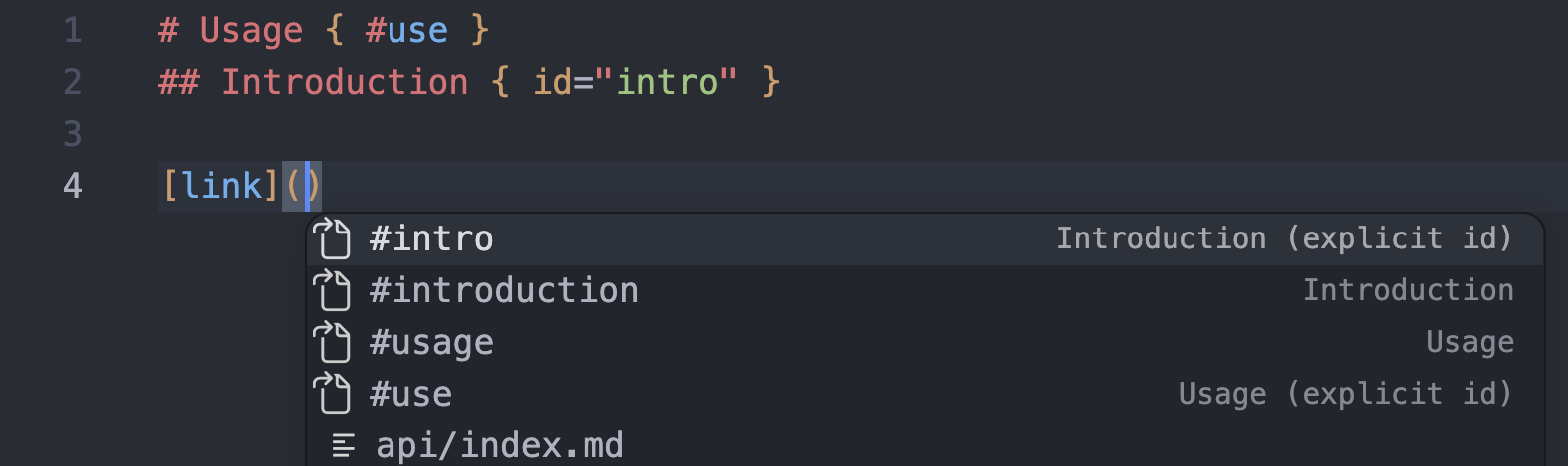
# Usage { #use }
## Introduction { id="intro" }
Zensical Studio recognizes both the #id and id="..." style of assigning an
id and offers them in completions as well as using them when validating links.
Navigating links

You can use links in your content to navigate between Markdown files and within a file from heading to heading. You can use Follow linkCtrl+ClickmacOSCmd+ClickWindowsCtrl+ClickLinuxCtrl+Click to follow a URL in a link or to follow a link label to the link definition. Alternatively, you can use Go to DefinitionF12.
To jump back from a link definition to the place where that definition is used, use Find All ReferencesFind All ReferencesFind referencesFind UsagesShift+F12. If there are multiple links using the definition then you will get a choice of which one to jump to.
Previewing links
Hovering over guide.md#install shows a preview of the destination, the
heading itself and a short excerpt of the content that follows, so you can
confirm it's the right target without moving.

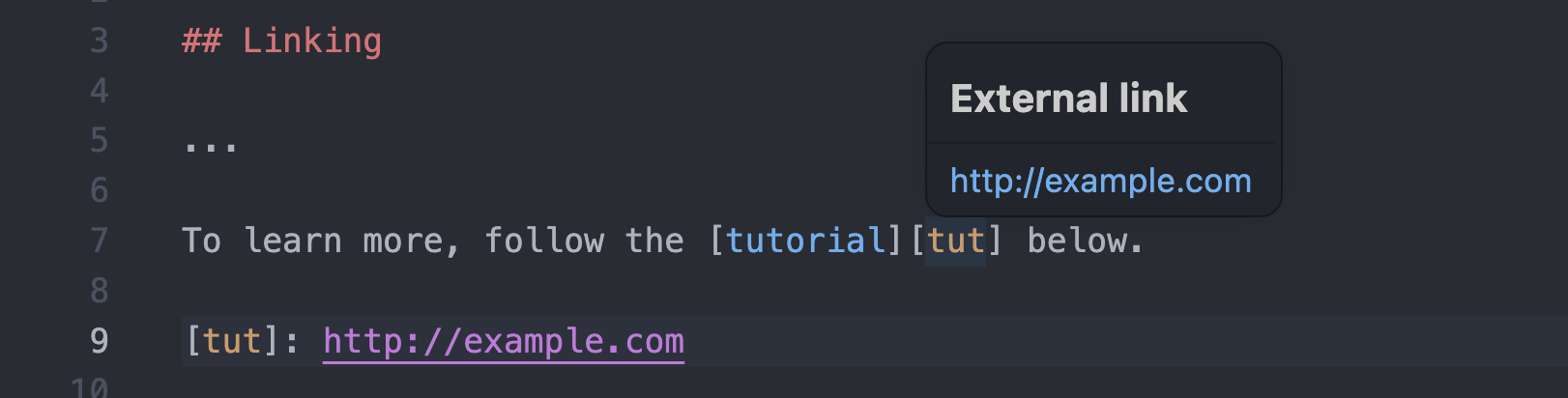
If you hover over a reference link with an external target, you will see the URL it resolves to. This way, you do not need to jump to the reference link definition.
Broken links
Detecting broken links
Zensical Studio resolves link references within your project. It highlights broken links as you write so you get immediate feedback if you make a mistake:

In this case, both the link itself and the link definition are underlined. When you hover over them, you see the reason. The hover on the link clarifies that the link is not resolved. If you hover over the link definition, you see that it is unused. Both tell you that there is a mismatch between the label used in the link and the link label.
Seeing broken links right in the editor is useful but there are still situations where they can slip through the net. Visual Studio CodeCursorZedJetBrains IDEs has a Problems panelProblems panelDiagnostics panelProblems tool window that lists any problems across files in your entire project.
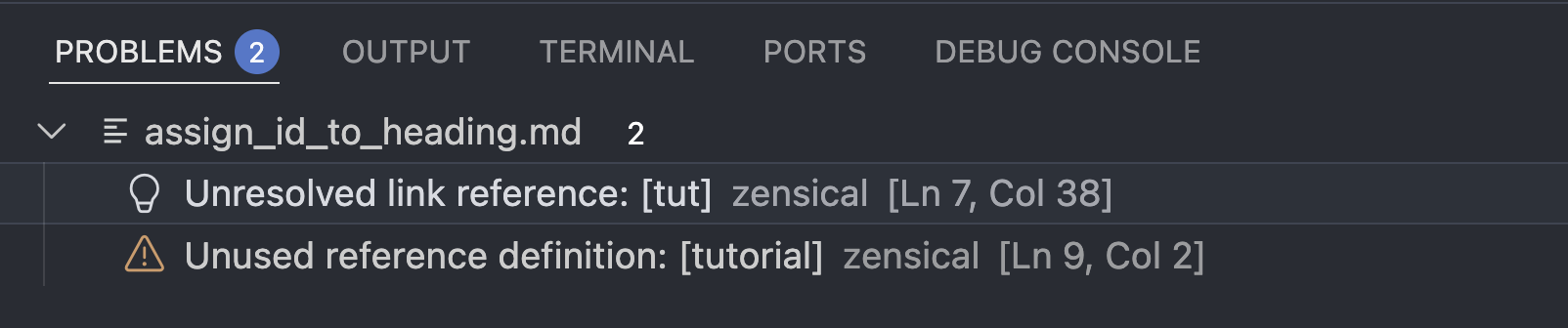
As you can see in the screenshot above, links that do not match a valid target or whose label does not match a link definition are not the only problem that Zensical Studio highlights. Unused or duplicate link defintion can also be an indication of a problem with links.
Preventing broken links
Links break when you manually edit link targets or link labels, when you rename or move files, or when you edit headings. Instead or relying on link validation, it is better to prevent these problems from occurring in the first place.
Zensical Studio offers a number of refactoring that allow you to make changes while Zensical Studion updates references for you: