Preview your changes
Markdown Preview

To view your content in Visual Studio CodeCursorZedJetBrains IDEs, you can use the Markdown
Preview that Zensical Studio provides. Simply click the Open Preview button
on top of your active editor.

Zensical Studio synchronizes the Markdown Preview with your editor location. Simply place the cursor into the content you wish to edit and the preview will follow. This includes opening the correct content tab or opening a details section to show the content that you are working on.
You can also open the Markdown Preview with
Open the Command PaletteOpen the Command PaletteOpen the command paletteOpen Find ActionCtrl+Shift+PmacOSCmd+Shift+PWindowsCtrl+Shift+PLinuxCtrl+Shift+P and
Zensical: Open Preview.
Preview follows active file
When you select another file to edit, the Markdown Preview will switch to that file so that what you see always matches what you are working on. This works when you switch the editor manually or when you follow a link. Whichever way another editor gets activated, Markdown Preview follows.
VSCode's integrated browser
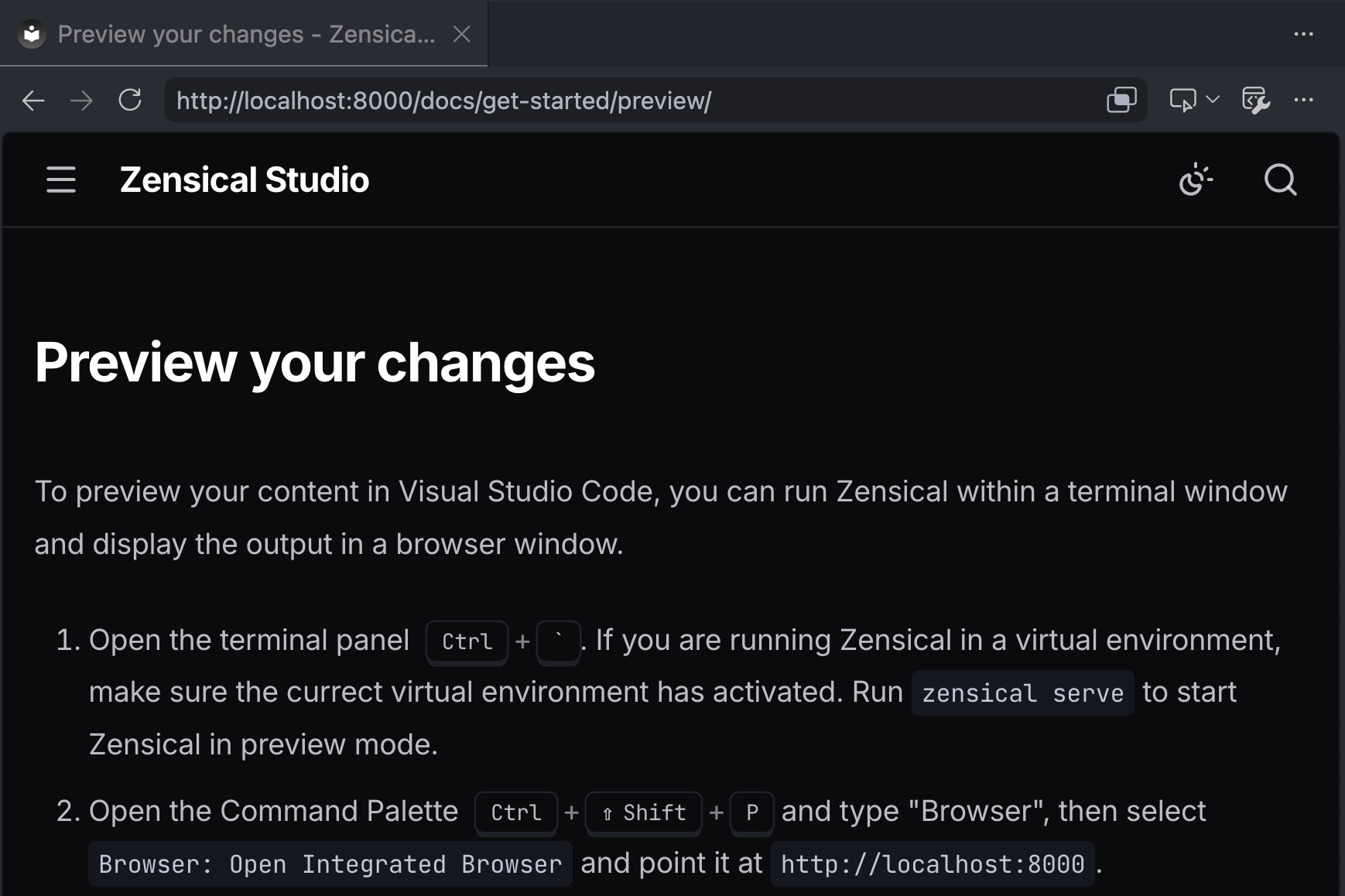
You can run Zensical within a terminal window and display the output in a browser window.
-
Open the terminal panelOpen the terminal panelopen the terminal panelopen the terminal panelCtrl+`. If you are running Zensical in a virtual environment, make sure the correct virtual environment has activated. Run
zensical serveto start Zensical in preview mode. -
Open the Command PaletteOpen the Command PaletteOpen the command paletteOpen Find ActionCtrl+Shift+PmacOSCmd+Shift+PWindowsCtrl+Shift+PLinuxCtrl+Shift+P and type "Browser", then select
Browser: Open Integrated Browserand point it athttp://localhost:8000.