Keep links valid while editing
Documentation becomes difficult to change when one small edit has consequences somewhere else: a heading has incoming links or a reference is reused across pages. This guide shows how Zensical Studio makes those connections visible and keeps them consistent for you.
Example project
This workflow uses the project in zensical-example-project.zip; it takes about five minutes to follow along. You can also use your own project to make similar changes.
Relative links
Zensical Studio is built around relative paths to a file. This is the only approach that lets Zensical Studio provide the full set of operations that keep links and paths correct: completion as you type, a repair action if a link breaks, and an automatic update when you rename or move the file it points to.
Explore connections
Links
Before making changes to content, explore what links to it in order to understand how readers might find it via links and what their expectations will be.

Open automations.md and check the Connections panel before making any of the changes below. It already shows the incoming link from workspace-settings.md that the next section follows, so you know what depends on this file before you touch it.
The Connections panel in the ExplorerExplorerProject panelProject tool window shows you both incoming and outgoing links. You can pin the file shown in it so it stays put while you explore related content.
Images
Likewise, the Connections panel can also show you how often and where an image is used:
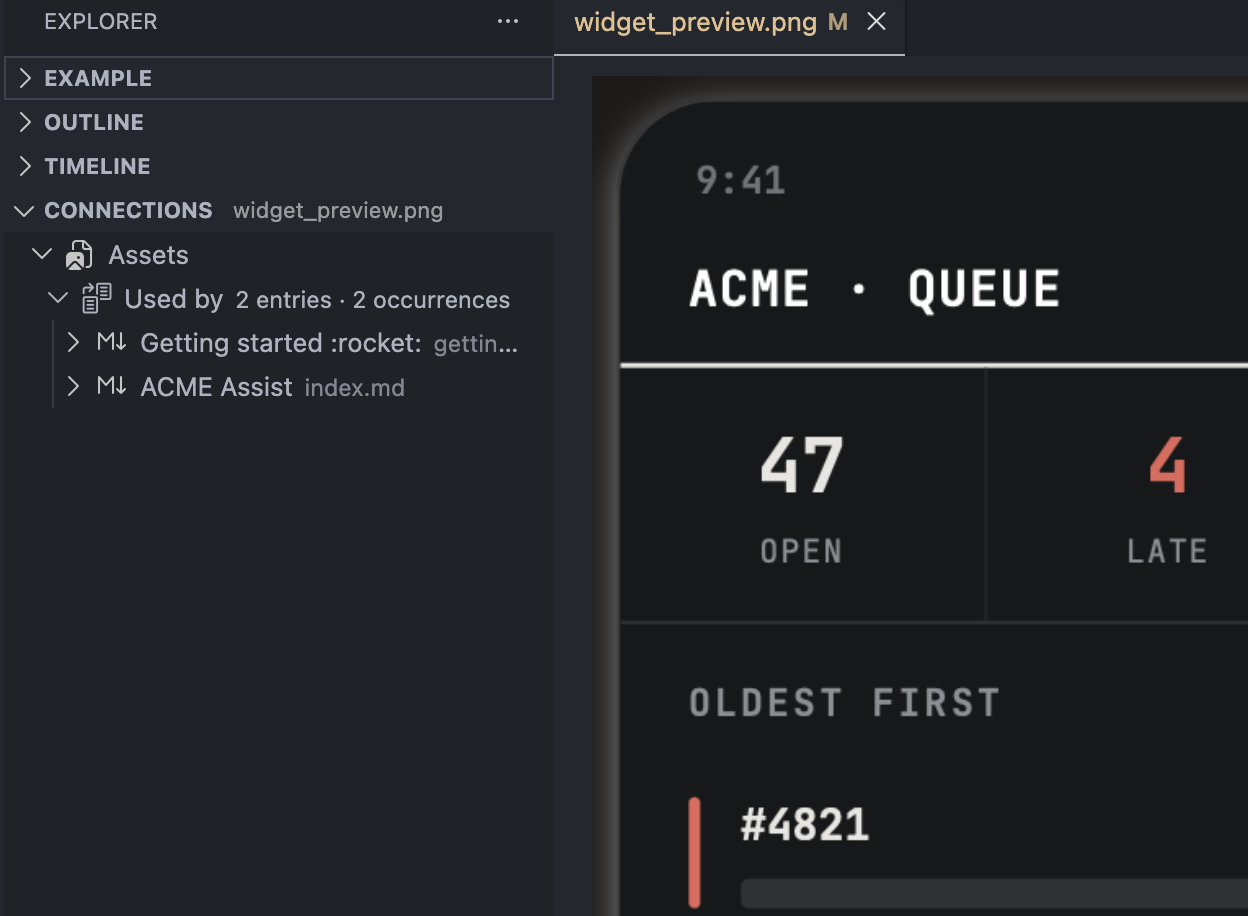
Making changes to an image is best done with knowledge of the context in which it is used. As with links, the Connections panel shows you how often an image is used and lets you explore the files in which it is included. Coming from page that includes an image, you can explore if it is used elsewhere.
Make changes safely
The following video shows the first four steps in one continuous shot:

Start with a link
In workspace-settings.md, the "Next steps" section links to a heading in another page:
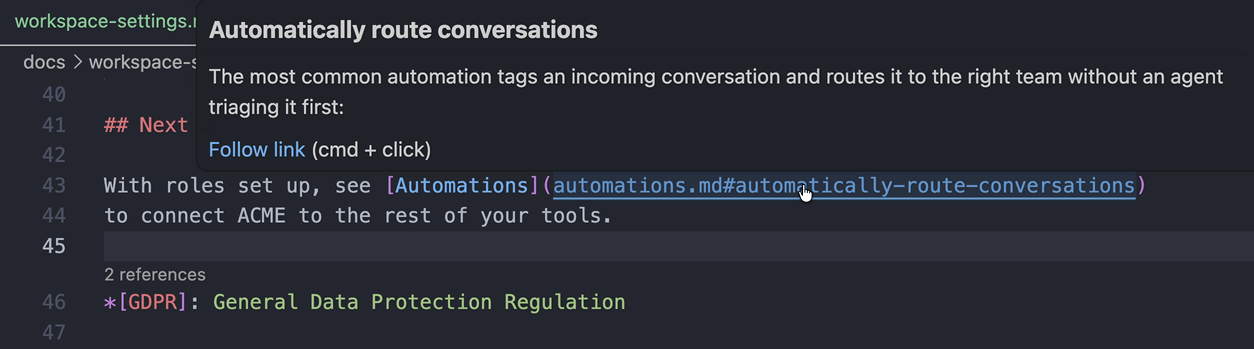
Hold Cmd/Ctrl and click the link, or place the cursor on it and use Go to DefinitionF12. Zensical Studio opens automations.md at the heading that owns #route-conversations-automatically.
Navigate via links
This is the first useful habit: follow a connection instead of searching for the file and then searching again for the target. It also works when the target is a reference definition, footnote, tab, explicit ID, or a selected section of reusable content.
Rename the definition
Rename the heading by editing it or by using Rename SymbolRename SymbolRenameRenameF2. Zensical Studio shows you that the heading has been edited and the file needs to be saved. Once you do this, Zensical Studio changes the definition and updates the incoming links in files across your project.

The link in workspace-settings.md now follows the new generated anchor. Instead of having to manually edit links, you can simply rename the thing that owns the anchor. Zensical Studio recomputes the anchor and updates incoming links when you save the file.
Make a long-lived anchor explicit
Generated anchors are convenient, but some sections may need more stable public URLs. Use Run the code actionRun the code actionToggle Code ActionsShow Context ActionsCtrl+.macOSCmd+.WindowsCtrl+.LinuxCtrl+. on the heading and choose Add link target:

The current generated slug becomes an authored ID.

The anchor is a normal workspace symbol. Before it was computed from the heading, now it is explicitly defined. Either way, links complete against it, navigation finds it, and Rename SymbolRename SymbolRenameRename or a saved edit updates the incoming links. Concise anchors are useful for headings that are linked from release notes, blog posts, or external documentation. See the page on keeping your content externally addressable for more on this.
Use Run the code actionRun the code actionToggle Code ActionsShow Context ActionsCtrl+.macOSCmd+.WindowsCtrl+.LinuxCtrl+. on the heading when you want to trigger the same action from the keyboard instead of the mouse.
Move the page
Move automations.md into a new directory advanced/ using the ExplorerExplorerProject panelProject tool window.
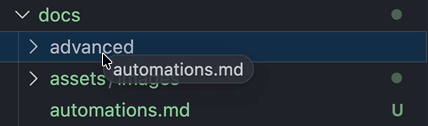
The link from workspace-settings.md is updated to the new relative path.

Links and snippet paths inside the moved file are rebased too, so they continue to point at the same targets from their new location: automations.md's own "roles and permissions" link, originally workspace-settings.md, becomes ../workspace-settings.md automatically.
Use normal editor functions
This is intentionally a file-explorer workflow. Use the file operation you would normally use, then let Zensical Studio update the Markdown relationships rather than repairing them afterwards. You can even use commands in a terminal to move files as long as Zensical Studio is running. It will pick up the changes and update references.
Turn a repeated link into a shared definition
index.md links to getting-started.md twice: once from the documentation list, once again from the closing paragraph. Each inline link repeats the same target, so changing that target means finding and editing both.
Place the cursor on either link and use Run the code actionRun the code actionToggle Code ActionsShow Context ActionsCtrl+.macOSCmd+.WindowsCtrl+.LinuxCtrl+.. Because Studio finds more than one link pointing at the same target, it offers Extract 2 matching links to reference definition instead of extracting only the one you selected:

Zensical Studio rewrites both links to [Getting started] and appends one definition, [Getting started]: getting-started.md, to the end of the file. The visible text already matches the label Studio generates, so it uses this shorter form; where the two differ, or another link already uses that label, Studio writes the full [text][label] form instead, or adds a number to keep the label unique.
From here, changing the target is one edit to the definition instead of a search across the file. Rename SymbolRename SymbolRenameRename on the definition, or on either use of it, renames both together, the same way it renames a heading and its incoming links.
Run Format DocumentFormat DocumentFormatReformat CodemacOSShift+Option+FWindowsShift+Alt+FLinuxCtrl+Shift+I afterward to group the new definition with any others at the end of the document. See Auto-format Markdown.
Where to go next
- Reuse content covers selectors, inclusion chains, and snippet sections.
- Auto-format Markdown covers structural formatting after a larger edit.